
How to manage stock in a shop in Cameroon
A product nobody can find, your best seller out of stock, an unexplained gap at the end of the month: in a small shop, especially a cosmetics shop, stock quickly gets out of hand. Here is a six-step method you can apply with a notebook, a spreadsheet or an app.
Steps 1 to 6 are general good practice. Part 8 then shows what Stock Master helps you apply, and what you still need to record separately.
1. Create one record per product and separate variants
A record matches one item you can count on its own. Each size, scent, shade or format gets its own record: “Shea body lotion 250 ml” and “Shea body lotion 500 ml” are two products, because they have neither the same price nor the same sales pace.
- Use a precise, stable name: brand, product, variant, size. Avoid catch-all records such as “various creams”.
- Record the purchase price, the sale price and the quantity in stock for each product. A photo helps sellers pick the right item.
- Group records by family (body care, hair, make-up, perfume) to find them quickly.
- For products that expire, write down the dates and sell the oldest first.
2. Count your opening stock
Every calculation will start from this count: take the time to do it properly, once.
- Pick a time with no sales: before opening or after closing.
- Count shelf by shelf, in pairs if possible: one person counts, the other writes.
- Set aside damaged, opened or expired items: they are not part of the stock you can sell.
- Write down the date of the count.
3. Record every delivery, sale, return or loss
Stock only changes through movements. If each one is recorded when it happens, the expected stock is easy to work out:
Expected stock = opening stock + deliveries − outgoings (sales, losses, returns to the supplier)
- Deliveries: for each delivery, count the items and compare them with the delivery note or invoice before you pay.
- Sales: record them when they happen, not from memory in the evening.
- Returns: an item brought back by a customer and still sellable goes back into stock; an item sent back to the supplier leaves it.
- Losses: damaged, expired or broken product, opened tester, theft found. Write down the date, the quantity and the reason. An unrecorded loss becomes an unexplained gap at the next count.
4. Choose which products to watch for restocking
Not every product needs the same attention. Identify your best sellers and the items that must never run out, then set a reorder point for each:
Reorder point = average sales per day × (supplier lead time + a few days of margin)
For example, a product that sells about 2 units a day, delivered in 3 days, with 2 days of margin: 2 × (3 + 2) = 10. As soon as 10 are left, reorder.
- Review reorder points when sales change: holidays, back to school, a product that becomes popular.
- Also spot the products that no longer sell: they tie up your money. Do not reorder them out of habit.
5. Share responsibilities within the team
Knowing who does what is not about distrust: it lets you find and fix a mistake quickly.
- Only one or two people receive deliveries and record them.
- Each seller records their own sales, when they make them.
- Corrections, returns and losses are reported to one named person, who records them.
- The owner or manager organises counts and reviews gaps.
- When someone leaves the shop, remove their access to your tools.
6. Regularly compare recorded stock with physical stock
- Do a full count at least once a month and, every week, a quick count of expensive or fast-selling products.
- Count first, then compare with the recorded stock: do not start from the expected figure.
- If there is a gap, find the cause before correcting: an unrecorded sale, an incomplete delivery, two variants mixed up, a forgotten loss.
- Write down each gap and its cause. If the same products keep coming back, change the way you handle them.
7. Worked example: remaining stock and revenue
Fictional example, for teaching purposes: it does not describe the situation of any Stock Master customer. The product is a shea body lotion 250 ml, sold at 3,500 FCFA each.
| Movement | Quantity | Stock after |
|---|---|---|
| Opening stock (count) | 20 | 20 |
| Delivery received | +10 | 30 |
| Sales | −8 | 22 |
| Damaged bottle (loss) | −1 | 21 |
Expected remaining stock: 20 + 10 − 8 − 1 = 21 units. If you count 21 on the shelf, everything is in order. If you count fewer, the gap needs explaining.
The 8 sales amount to 8 × 3,500 FCFA = 28,000 FCFA in revenue. That is not profit: to get profit, you must at least subtract the purchase price of the 8 bottles sold, the value of the damaged bottle and the shop's costs (rent, transport, electricity…). Nor is it necessarily the cash collected, if some sales were made on credit.
8. Apply the method with Stock Master
Steps 1 to 6 work with any tool. Here are the operations actually available today in Stock Master, a stock and sales management app used from your phone, to apply them. The screens are described in detail in the user guide.
Product records and variants
- Each product has a name, a photo (required), a purchase price, a sale price and an initial quantity. Products are organised into categories and sub-categories (“New section”).
- Create one product per variant (250 ml and 500 ml, for example), as in step 1.
- An optional expiry date can be entered on the product. It applies to the whole product and does not block sales, even once passed; it triggers expiry alerts.
- If two deliveries have different dates, enable batch tracking: each batch keeps its date, the sale suggests the nearest expiry first, and an expired batch can no longer be sold.
Opening stock
The initial quantity entered when you create the product is your opening stock: enter the result of your count.
Deliveries and sales
- Deliveries: “Edit” on the product, then “Additional stock to add” (“Adjust stock” right). For a product tracked by batches: “New batch” or “Receive” in the product's “Batches” section.
- Losses (product tracked by batches): “Record a loss” on the batch, with the reason (expiry, breakage, other). A loss lowers the stock without being a sale; a mistake is fixed with “Correct”. See the user guide.
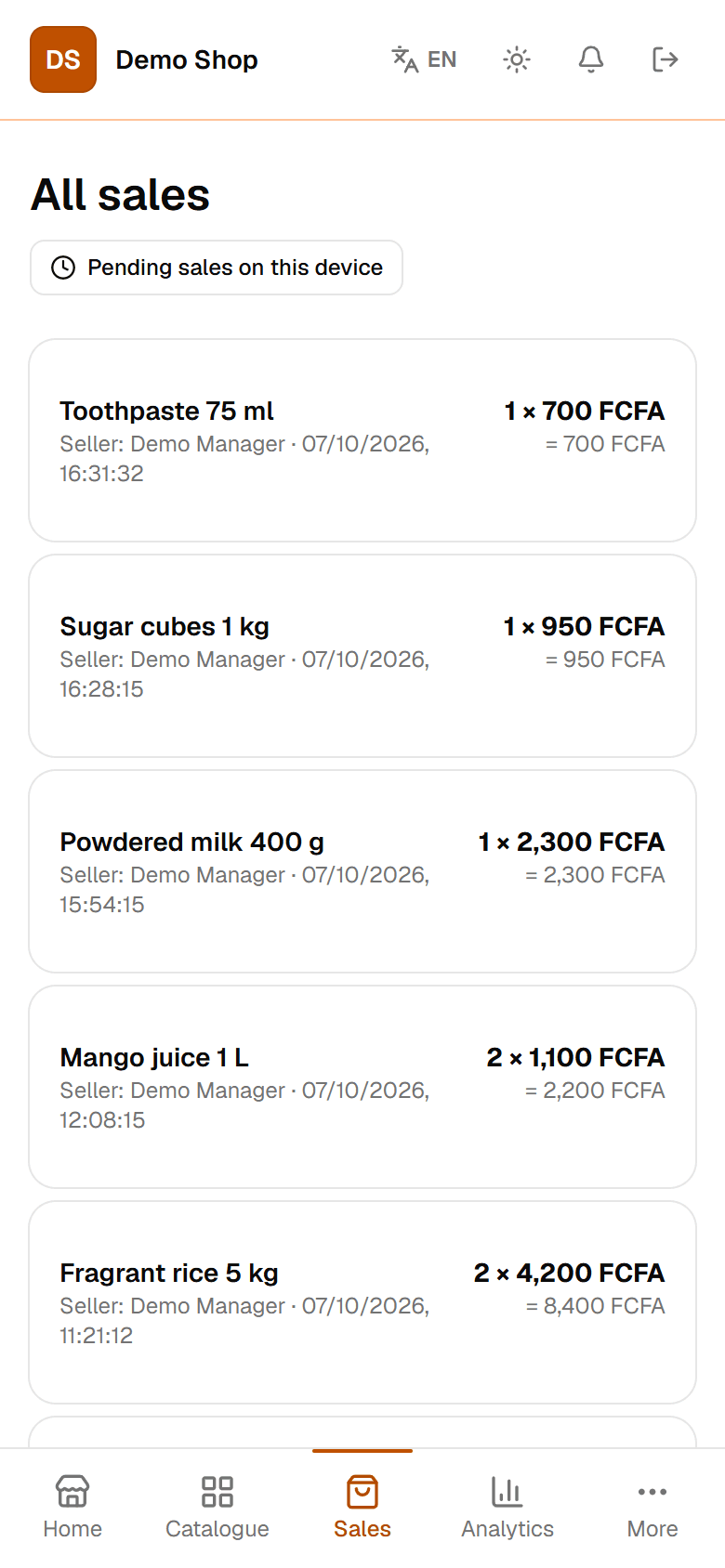
- Sales: “Record a sale” on the product. Each sale lowers the stock and keeps the seller, the date and the time. Sales can also be entered without a network, under certain conditions.
- Entry mistakes: depending on your rights, a sale recorded by mistake can be corrected or deleted; the units then go back into stock.
- The product's “Full history” lists its creation, sales, stock additions, price changes and edited or cancelled sales, with who did it and when (“See the audit history” right).
Products to watch
- Each product shows “In stock”, “Low stock” or “Out of stock”. You can set a low-stock threshold per product (your reorder point from step 4): the product shows “Low stock” as soon as the remaining quantity is below it. Without a threshold, the default rule applies: 20% or less of the total quantity entered (initial quantity plus additions).
- Members with the “See stock details” right are notified once when a product falls below its threshold, then when it runs out.
- The Analytics page (“View analytics” right) gathers under “To watch” the stock-outs, the products “Running out soon” (about 7 days of stock or less at the pace of recorded sales, when there are enough sales to estimate) and those with no recent sales.
Team and rights
- Three roles: Owner, Administrator and Seller. By default, a seller records sales and sees their own; they can also correct or delete their own sales, and every correction stays visible in the product's history.
- You add other rights one by one, for example “Adjust stock” only for the person who receives deliveries. Changing a product's expiry date or threshold also requires “Manage expiry dates” or “Customise stock thresholds”.
- The owner is notified when another member edits a product (adding stock, for example), corrects or cancels a sale.
- A member can be suspended or revoked. See roles and rights.
Compare with physical stock
- Each product's “Remaining stock” is the recorded stock to compare with your count. First sync any sales entered without a network.
- If the gap comes from an entry mistake, correct the sale concerned or add the forgotten delivery.
- The owner and administrators can download a month's history (Excel or PDF): sales, corrections and cancellations, to check a period.
Record separately
These movements are not recorded in Stock Master: keep them in a notebook or a spreadsheet, with the date, the quantity and the reason.
- Customer returns and returns to the supplier. Correcting or deleting a sale is for fixing an entry mistake: it is not a way to track returns.
- Losses on a product without batches (damaged or expired products, opened testers, theft found): losses can only be recorded on a batch.
- The results of your counts.
For a product without batches, the stock shown only goes down through a sale: in the example above, the app shows 22 units while the shelf holds 21. For a product tracked by batches, record the loss: the stock shown then matches the shelf. Take these notes into account at every count.
Apply this method with Stock Master
Create your account, then add your products and invite your sellers from your phone. A new account creates its shop and gets a 7-day free trial, which starts when the shop is created.
See pricing · Already registered? Log in
A question about this text? Contact Stock Master